
TL;DR
- Start a Microsoft Teams meeting directly from the meeting room console without opening your laptop.
- Microsoft Teams Rooms support instant meetings with a simple touch on the room controller.
- The right camera, microphone, display, and Teams Room system make the process quick and reliable.
- One-touch meeting controls reduce setup time and help meetings begin on schedule.
- Businesses can improve meeting consistency while reducing cable clutter and technical delays.
Walking into a meeting room should not mean searching for HDMI cables, opening your laptop, signing into apps, or waiting for software updates. Modern Microsoft Teams Rooms remove those extra steps by allowing anyone in the room to start a meeting directly from the room controller.
If your office regularly hosts quick discussions, customer calls, or unplanned team meetings, an ad hoc teams meeting conference room can save valuable time. Instead of relying on personal devices, the meeting room itself becomes the conferencing device.
This guide explains how Microsoft Teams Rooms work, what equipment you need, and how you can start teams meeting without laptop while still enjoying professional video, clear audio, and simple meeting controls.
Why Do Businesses Want to Start Teams Meetings Without a Laptop?
- Faster meeting starts
- Consistent audio and video quality
- Fewer connection problems
- Less dependence on personal devices
- Easier guest participation
What Is an Ad Hoc Teams Meeting Conference Room?
- Quick management discussions
- Customer support calls
- Sales conversations
- Project reviews
- Emergency response meetings
- Brainstorming sessions
How Does a Microsoft Teams Room Work Without a Laptop?
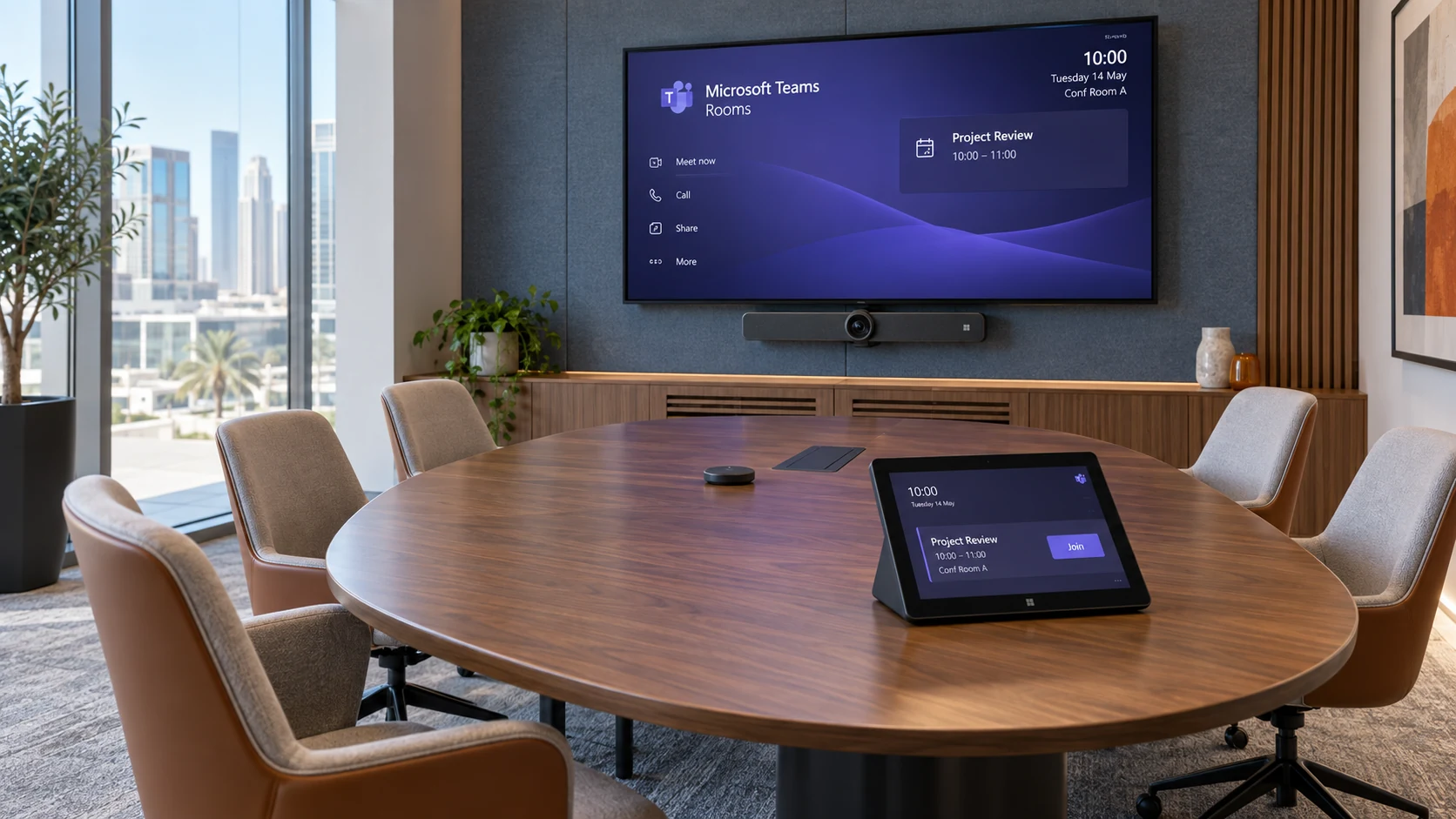
A Microsoft Teams Room works because the room itself contains a dedicated conferencing computer that runs Microsoft Teams independently.
Instead of launching Teams on a personal computer, users interact with a touchscreen controller placed on the conference table or mounted near the display.
The room system handles:
- Signing into the room account
- Connecting cameras
- Managing microphones
- Displaying meeting content
- Joining scheduled meetings
- Creating instant meetings
When someone taps New Meeting on the controller, the room creates a Teams session using its own account. This allows employees to start teams meeting without laptop while using the room’s professional AV equipment.
Because the hardware remains permanently installed, every meeting begins with the same camera settings, speaker configuration, and microphone coverage.
What Equipment Is Required?
The answer depends on the size of your meeting room, but every Microsoft Teams Room includes a few essential components.
Microsoft Teams Room Compute System
This is the dedicated computer that runs Microsoft Teams.
It stays connected to the room’s display, camera, microphones, and network. Users rarely interact with the computer directly because everything is controlled through the room console.
Popular Teams Room systems are available from manufacturers including Logitech, Yealink, Poly, and Lenovo.
Touch Controller
- Join scheduled meetings
- Create instant meetings
- Control camera settings
- Adjust volume
- Share content
- End meetings
Conference Camera
- Auto framing
- Speaker tracking
- AI-powered participant framing
- Optical zoom
- Wide-angle lens
Professional Microphones
- Ceiling microphones
- Table microphones
- Beamforming microphone arrays
Display Screens
Most Teams Rooms include one or two large displays.
Single-display rooms usually show participants and shared content together.
Dual-display rooms can show shared presentations on one screen while keeping remote participants visible on the second display.
Speakers
Professional speakers provide consistent audio throughout the room.
Unlike laptop speakers, room speakers are designed so everyone can hear clearly without increasing the volume to uncomfortable levels.
Stable Network Connection
Every Teams Room depends on a reliable internet connection.
Microsoft recommends sufficient network bandwidth and low latency for high-quality Teams meetings. A wired Ethernet connection is generally preferred for permanent meeting room systems because it provides more consistent performance than Wi-Fi.
Why Is One Touch Teams Meeting Becoming So Popular?
The biggest reason is simplicity.
Employees do not want to spend five minutes preparing technology for a ten-minute conversation.
A one touch teams meeting allows users to enter the room, tap a single button, and begin collaborating almost immediately.
This approach also helps IT teams because every room follows the same process. Users do not need to learn different setups for different meeting spaces.
For organizations with dozens of conference rooms, standardization reduces training, support requests, and meeting delays.
How Do You Start an Instant Meeting in a Teams Room?
The process is simple. Walk into the room, use the touch controller, and create a new meeting directly from the Microsoft Teams Room system. There is no need to sign in on your personal computer to start teams meeting without laptop.
Although the exact interface may vary slightly depending on the certified hardware, the workflow remains almost the same across Teams Rooms.
Step 1: Wake the Room Controller
- Today’s meeting schedule
- Current room status
- New Meeting option
- Join button for scheduled meetings
- Device settings
Step 2: Select "New Meeting"
Tapping New Meeting creates a new Microsoft Teams session using the room’s resource account.
This is what turns the room into an ad hoc teams meeting conference room. Instead of waiting for a scheduled invitation, anyone with permission can create an instant meeting on demand.
This feature is ideal for:
- Quick project discussions
- Customer support calls
- Urgent management meetings
- Technical troubleshooting sessions
- Interviews
- Daily stand-ups
Within a few seconds, the meeting room is ready for participants.
Step 3: Invite Participants
After creating the meeting, add participants by typing their names or email addresses.
The Teams Room searches your organization’s directory, making it easy to find colleagues without using a laptop.
You can invite:
- Individual employees
- Departments
- Microsoft 365 groups
- External guests, if your organization allows it
Everyone receives a Teams invitation immediately and can join from their own device.
Step 4: Verify Audio and Video
Before inviting everyone, confirm that the room devices are working correctly.
Check that:
- The camera is showing the room.
- Microphones are active.
- Speakers are producing clear sound.
- The internet connection is stable.
- The room display is visible.
Most Teams Rooms automatically enable the installed camera and microphones, so very little manual setup is required.
Step 5: Begin the Meeting
- Wider camera coverage
- Better voice pickup
- Louder, clearer audio
- Larger meeting display
How Does One Touch Teams Meeting Work?
A one touch teams meeting works by allowing users to control the entire meeting from the Teams Room touch console.
Instead of opening Microsoft Teams on a laptop, users interact with a dedicated controller connected to the room system.
Typical actions include:
- Join a scheduled meeting
- Start a new meeting
- Mute microphones
- Control camera views
- Share content
- Add participants
- End the meeting
Because every action is available from one interface, users spend less time learning the system.
For organizations with multiple meeting rooms, this consistent experience reduces support requests and training time.
Can You Share Content Without Using a Laptop?
Yes, but the method depends on how your meeting room is configured.
Many Microsoft Teams Rooms support wireless presentation, allowing users to share content directly from supported devices. Others include HDMI or USB-C inputs for wired content sharing.
Some organizations also deploy technologies such as Microsoft Teams casting or wireless presentation systems to make sharing even easier.
Common sharing options include:
| Sharing Method | Laptop Required | Best For |
|---|---|---|
| Teams Room wireless presentation | Yes, for the content source | Everyday presentations |
| HDMI cable | Yes | Large presentations and videos |
| USB-C connection | Yes | Modern laptops |
| Teams Cast (supported environments) | Yes | Wireless sharing |
| Whiteboard in Teams | No | Brainstorming sessions |
Even when someone connects a laptop to present content, the meeting itself continues to run on the Teams Room system. This means users still start teams meeting without laptop for conferencing, while using a device only to display documents or slides if needed.
What Happens If Nobody Has a Laptop?
- Camera
- Microphones
- Speakers
- Large displays
- Teams application
- Meeting controls
Example: A Sales Team Needs an Urgent Customer Call
A customer requests a video meeting within the next five minutes.
Instead of asking everyone to return to their desks, the sales team walks into the nearest conference room.
One employee taps New Meeting on the Teams controller.
The room instantly becomes an ad hoc teams meeting conference room.
The customer receives the invitation, joins remotely, and the discussion begins using the room’s professional camera and microphones.
The entire process takes only a few moments and avoids the delays often caused by connecting laptops or troubleshooting cables.
Example: Daily Operations Meeting
An operations manager wants a quick update from staff working at different sites.
Rather than booking a meeting in advance, the manager enters the Teams Room and chooses New Meeting.
Remote supervisors are invited from the company directory.
Within minutes, everyone joins using the room’s built-in AV system.
This is a practical example of how organizations start instant meeting in teams room for short, unplanned discussions.
Common Mistakes That Slow Down Teams Rooms
Assuming Every Room Works the Same Way
Different meeting rooms may have different camera layouts or display configurations.
Standardizing room designs across the office helps employees move between rooms with minimal learning.
Forgetting to Test Audio
A muted microphone or disconnected speaker can interrupt a meeting before it begins.
A quick audio check before inviting participants saves time later.
Poor Camera Placement
Even advanced cameras perform poorly if they are mounted too high, too low, or off-center.
The camera should provide a clear view of everyone seated around the table.
Weak Network Performance
Video meetings depend on a reliable network.
If bandwidth is limited or latency is high, participants may experience frozen video or distorted audio. Microsoft recommends following its guidance for Teams media traffic and network planning to maintain call quality.
Skipping Software Updates
Teams Rooms receive updates that improve reliability, security, and compatibility.
Keeping room systems current helps reduce unexpected issues during meetings.
Can Guests Join an Instant Teams Room Meeting?
Yes, in many organizations they can.
Whether external participants are allowed depends on your company’s Microsoft Teams policies.
If guest access is enabled, you can invite:
- Clients
- Vendors
- Consultants
- Job candidates
- Business partners
Guests receive a standard Teams meeting invitation and can join from the Teams app or a supported web browser.
This makes an ad hoc teams meeting conference room useful for both internal collaboration and external business discussions.
Teams Room vs Laptop Meetings: Which Is Better?
The right choice depends on how your meeting spaces are used. For quick video calls at a desk, a laptop works well. For conference rooms with multiple participants, a Microsoft Teams Room provides a more consistent and professional experience.
A dedicated room system is designed to handle audio, video, and meeting controls without depending on someone’s personal device. This is why many organizations choose an ad hoc teams meeting conference room for shared collaboration spaces.
| Feature | Microsoft Teams Room | Recommended Solution |
|---|---|---|
| Meeting start | One tap from room controller | User signs in and launches Teams |
| Camera | Professional conference camera | Built-in webcam |
| Audio | Room microphones and speakers | Laptop microphone and speakers |
| Display | Large meeting room display | Laptop screen or external monitor |
| Room coverage | Supports everyone in the room | Best for one or two people |
| Cable dependency | Minimal | Often requires HDMI or USB-C |
| Management | Centrally managed by IT | Managed by individual users |
| Best for | Shared meeting rooms | Personal workspaces |
For organizations that frequently host group discussions, the Teams Room approach reduces setup time and provides a consistent experience in every meeting room.
Is a Teams Room Worth It for Every Meeting Space?
No. The room size and meeting style should guide your decision.
A small huddle room may only need an all-in-one collaboration bar, while a large boardroom often requires multiple microphones, additional speakers, and intelligent camera tracking.
Small Meeting Rooms
Small rooms usually accommodate two to six people.
A compact Teams Room solution typically includes:
- One conference camera
- Integrated speakers
- Built-in microphones
- Touch controller
- Single display
These rooms are ideal for teams that regularly start teams meeting without laptop for short internal discussions.
Medium Meeting Rooms
Medium rooms generally seat six to twelve participants.
They often benefit from:
- Wider camera coverage
- Additional table microphones
- Dual displays
- Better speaker distribution
These upgrades ensure everyone can be seen and heard clearly.
Large Conference Rooms
- PTZ cameras
- Ceiling microphone arrays
- Digital signal processors (DSPs)
- Multiple speakers
- Dual or triple displays
- Centralized control systems
What Are the Biggest Benefits of Starting Teams Meetings Without a Laptop?
The biggest benefit is consistency. Every meeting starts with the same equipment, settings, and controls, regardless of who is using the room.
Other advantages include:
Faster Meeting Starts
Employees no longer spend several minutes connecting cables or signing into different devices.
Instead, they can start instant meeting in teams room directly from the touch controller and focus on the discussion.
Better Audio Quality
Professional microphones are designed to capture voices across the room.
Many modern systems use beamforming technology to focus on active speakers while reducing unwanted background noise.
This helps remote participants hear conversations more clearly than they typically would through a laptop microphone.
Improved Video Experience
- Automatic framing
- Speaker tracking
- Wide-angle lenses
- Optical zoom on supported models
Consistent User Experience
Every meeting room follows the same workflow.
Whether an employee visits the first-floor boardroom or a small huddle space, the process for a one touch teams meeting remains familiar.
This consistency reduces training requirements and minimizes user errors.
Reduced Cable Clutter
Permanent AV installations eliminate many of the cables that typically cover conference room tables.
This creates a cleaner meeting environment and reduces accidental disconnections during presentations.
Best Practices for Reliable Teams Room Meetings
Good technology works best when paired with thoughtful room design and regular maintenance.
Position the Camera at Eye Level
A camera mounted close to eye level creates a more natural conversation for remote participants.
Avoid placing the camera too high above the display or too far to one side.
Choose the Right Microphone
- Ceiling microphones work well in larger spaces with flexible seating.
- Table microphones are suitable when participants remain seated around a central table.
- Integrated microphone bars are often enough for small meeting rooms.
Keep the Room Controller Accessible
The touch controller should be easy for everyone at the table to reach.
If users struggle to access the controls, simple tasks like muting microphones or inviting participants become less convenient.
Maintain Good Lighting
Even high-quality cameras perform poorly in dark rooms.
Soft, even lighting helps the camera produce a clearer image and makes facial expressions easier to see.
Avoid placing bright windows directly behind participants whenever possible.
How Secure Are Microsoft Teams Rooms?
Microsoft Teams Rooms include enterprise-grade security features, but they should still be managed according to your organization’s IT policies.
Common security practices include:
- Using dedicated resource accounts for each room
- Applying regular software updates
- Restricting administrator access
- Managing devices through centralized tools
- Monitoring room health remotely
Following these practices helps keep meeting spaces reliable while protecting organizational data.
Troubleshooting Common Teams Room Problems
Even well-designed meeting rooms can occasionally experience technical issues. Fortunately, most problems have straightforward solutions.
| Problem | Possible Cause | Recommended Solution |
|---|---|---|
| Camera not detected | Loose USB connection or device error | Check hardware connections and restart the room system |
| No audio from speakers | Incorrect output device or muted volume | Verify speaker selection and volume settings |
| Microphone not working | Device muted or disconnected | Confirm microphone status on the controller |
| Slow meeting connection | Network congestion | Test internet performance and prioritize Teams traffic |
| Display shows no image | Cable issue or display input selected incorrectly | Check display input and video connections |
| Touch controller not responding | Temporary software issue | Restart the controller or Teams Room system |
Real-World Example: From Five Minutes of Setup to One Tap
A regional office previously relied on employees bringing their own laptops into the conference room. Meetings often started late because someone needed the correct adapter, another person had to update Microsoft Teams, and audio devices were sometimes selected incorrectly.
After installing a Microsoft Teams Room, the workflow changed significantly.
Employees now walk into the room, use the touch controller, and begin a one touch teams meeting within moments.
Presentations can still be shared when needed, but the meeting itself no longer depends on a personal laptop.
The result is a more consistent experience for employees and remote participants alike.
What Does the Future Look Like for Teams Rooms?
Microsoft Teams Rooms continue to evolve with features that make meetings easier to manage and more inclusive for remote participants. AI-assisted camera framing, intelligent speaker recognition, and improved room management tools are becoming common in certified Teams Room devices.
As organizations adopt hybrid work, meeting rooms are no longer designed only for people sitting around a table. They are built so remote and in-room participants can collaborate with the same level of visibility and audio quality. That makes it even more valuable to have an ad hoc teams meeting conference room that is always ready for spontaneous discussions.
Future improvements are expected to focus on:
- Better AI camera framing for larger groups
- Smarter noise suppression
- Improved meeting analytics for IT administrators
- Easier wireless content sharing
- More integration with Microsoft 365 collaboration tools
For businesses investing in meeting spaces today, choosing Microsoft Teams Rooms provides a platform that can continue to receive software updates and new features over time.
Final Thoughts
Starting a Microsoft Teams meeting should not require searching for cables, signing into multiple devices, or troubleshooting audio settings. A properly configured Teams Room gives employees a faster and more consistent way to collaborate.
Whether you need a space for quick internal discussions, customer calls, or hybrid meetings, an ad hoc teams meeting conference room helps teams begin conversations with minimal setup. The combination of dedicated room hardware, professional cameras, quality microphones, and a touch controller allows users to start teams meeting without laptop while maintaining reliable audio and video quality.
If your organization regularly hosts unplanned meetings, investing in Microsoft Teams Rooms can reduce delays, simplify room technology, and improve the experience for everyone in the meeting, whether they are in the room or joining remotely.
The next step is to evaluate your existing meeting spaces. Check whether your current displays, cameras, microphones, and network infrastructure are compatible with Microsoft Teams Rooms. In many cases, you can upgrade your conference room without replacing every piece of AV equipment, making the transition more practical and cost-effective.
Frequently Asked Questions
Can I start a Teams meeting without a laptop?
Yes. A Microsoft Teams Room allows you to start teams meeting without laptop by using the room’s touch controller. The room system runs Microsoft Teams independently, so you can create or join meetings without opening Teams on your personal device.
What is an ad hoc Teams meeting conference room?
An ad hoc teams meeting conference room is a meeting space where users can create an instant Microsoft Teams meeting without scheduling it in advance. The room’s dedicated Teams system handles the meeting using installed AV equipment.
How do I start an instant meeting in a Teams Room?
To start instant meeting in teams room, wake the touch controller, select New Meeting, invite participants, verify the room’s audio and video, and begin the meeting. The entire process usually takes less than a minute.
What is a One Touch Teams Meeting?
A one touch teams meeting lets users join a scheduled meeting or begin a new meeting from the Teams Room controller with a single tap. This reduces setup time and makes meeting rooms easier for everyone to use.
Do I still need a laptop to share presentations?
Not always. Many Teams Rooms support wireless presentation or direct content sharing through HDMI or USB-C. While a laptop or mobile device may still be used as the content source, the meeting itself continues to run on the Teams Room system.