
TL;DR
- Different wireless presentation gear in every room forces employees to relearn the setup each time and drives up help desk calls.
- A standard wireless presentation system, picked once and deployed everywhere, cuts training time and simplifies IT support.
- Studies show meeting time is regularly lost to connection problems, and a consistent conference room presentation system recovers most of it.
- Centralized management lets one IT admin monitor every room’s wireless presentation solutions from a single dashboard instead of visiting each room.
- Rolling out a standard is a project, not a purchase. It needs a device audit, a pilot room, and a rollout schedule.
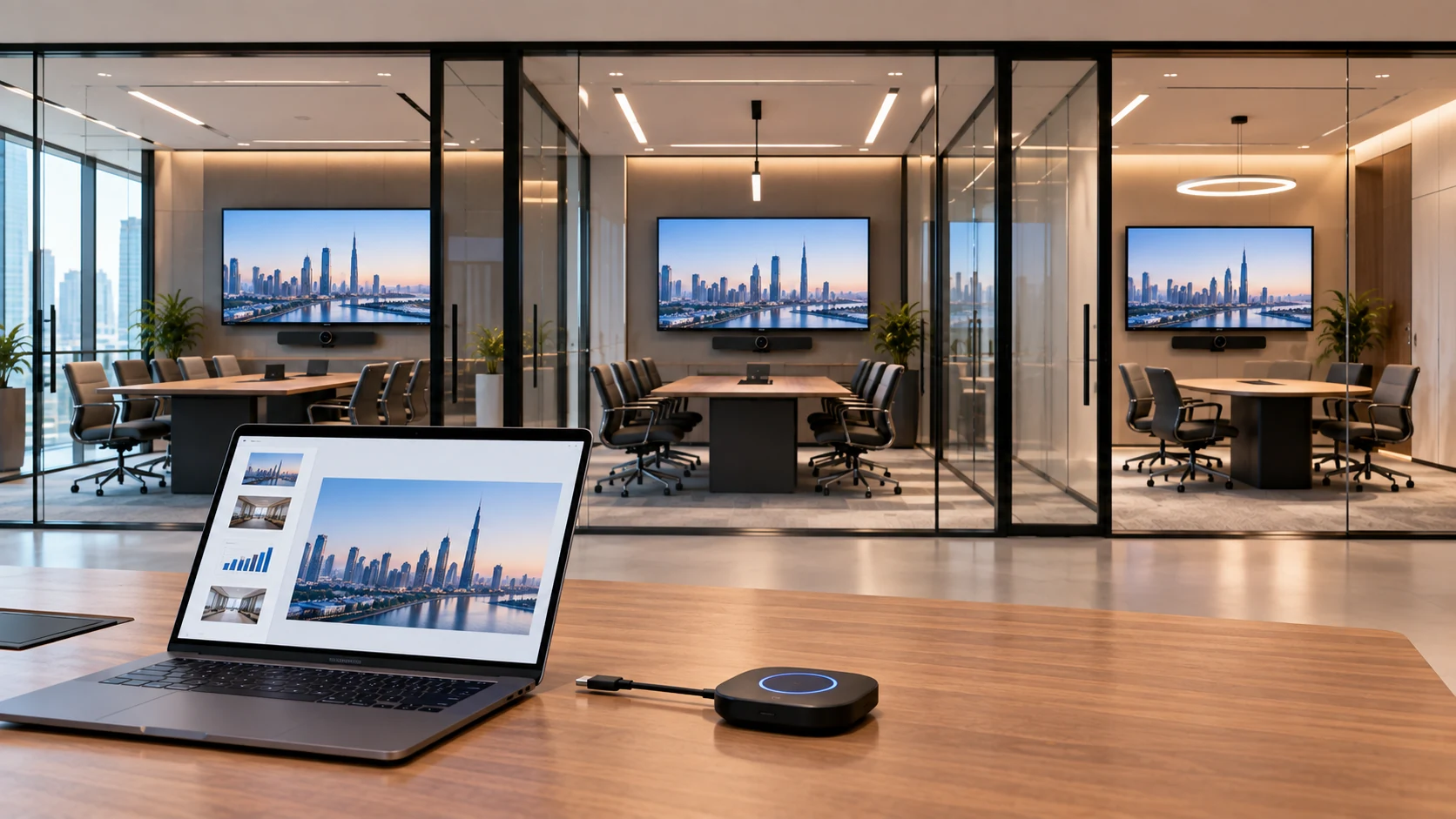
If every conference room in your building runs a different wireless presentation setup, your employees are wasting time relearning the process every time they book a room. One room has a Barco puck. Another needs an app. A third only works if you remember the Wi-Fi password from three quarters ago. This article covers how to standardize wireless presentation across multiple rooms so meetings start on time, IT support gets simpler, and every employee knows exactly what to do the second they walk in.
Why Does Wireless Presentation Consistency Matter?
Consistency matters because inconsistent rooms waste meeting time and multiply IT support tickets. When five conference rooms run five different systems, employees have to guess which app to open, which cable to grab, or which button to press. That guessing eats into the meeting itself.
Research on meeting technology found that 18% of meeting time is wasted trying to get the tech to cooperate before the actual discussion can start. In a 30-minute meeting, that is more than five minutes gone before anyone says a useful word.
A standard wireless presentation system removes the guesswork. Walk into any room, connect the same way, and start talking. That single habit, repeated across every room in the building, adds up to real hours saved every week.
What Happens Without a Standard?
Without a standard, every room becomes its own troubleshooting project. New hires get lost. Visitors get stuck. IT gets paged for the same three issues over and over, just in different rooms.
Here is a common pattern in offices that never standardized:
- Room A uses a wired HDMI cable that keeps disappearing.
- Room B has an old wireless dongle nobody remembers how to pair.
- Room C requires a software download that IT never approved for guest laptops.
Each room needs its own fix, its own spare parts, and its own instructions taped to the wall. None of that scales past a handful of rooms.
What Does "Standardizing" Actually Mean?
Standardizing means choosing one wireless presentation platform, one connection method, and one support process, then applying it to every room the same way. It is not about buying identical furniture or identical screens. It is about making the connection experience predictable no matter which door someone walks through.
A standardized setup usually includes:
- One hardware or software platform used in every room (same brand, same model line where possible).
- One connection method, such as a USB button, a QR code, or a native casting protocol.
- One IT management console that shows the status of every room from one screen.
- One documented process for onboarding, troubleshooting, and firmware updates.
Does Standardizing Mean Every Room Has to Be Identical?
No, standardizing means the experience is identical, not the room size or hardware tier. A six-person huddle room and a 20-person boardroom will need different amounts of hardware. A buyer’s guide for business AV notes that a small huddle room may only need a basic wireless transmitter and receiver, while a large boardroom needs support for multiple presenters and two displays.
The trick is keeping the underlying platform, login method, and admin interface the same across both room types. The hardware scales up or down. The user experience does not change.
How Do You Standardize Wireless Presentation Across Multiple Rooms?
You standardize by auditing your current rooms, picking one platform that fits your smallest and largest spaces, piloting it in one room, then rolling it out on a schedule. Skipping the audit or the pilot is the most common reason standardization projects stall halfway through a building.
Step 1: Audit Every Existing Room
Start by listing what each room currently has. Note the display type, the current connection method, the number of typical attendees, and any recurring complaints from staff.
This step usually surfaces the real problem faster than expected. Maybe three rooms already have compatible hardware and just need a software update. Maybe two rooms have equipment so old it needs full replacement. You cannot plan a rollout without knowing where you are starting from.
Step 2: Set Your Non-Negotiable Requirements
Write down what every room must support before you look at a single product. Common requirements include:
- Support for Windows, macOS, iOS, Android, and Chromebook devices.
- No mandatory app install for guest presenters.
- Multi-presenter support so people are not queuing to plug in.
- Integration with your existing video conferencing platform.
- Centralized remote management for IT.
Step 3: Pilot Before You Buy for Every Room
Deploy your chosen conference room presentation system in one mid-sized room first. Run it for two to four weeks with real meetings, not test sessions. Ask the people who use that room daily what worked and what did not.
Step 4: Roll Out on a Fixed Schedule
Step 5: Document and Train Once
Write one onboarding guide, not one per room. Since the connection process is now the same everywhere, a single one-page instruction sheet or a two-minute video covers the whole building.
What Should You Look For in a Standard Platform?
Look for broad device compatibility, centralized management, multi-presenter support, and predictable pricing per room. These four factors determine whether the standard actually holds up once dozens of employees start using it daily.
Device Compatibility
Your standard has to work with whatever laptops and phones people actually bring in, not just company-issued hardware. Guests, contractors, and BYOD employees all need a way in without installing anything new.
Centralized IT Management
A wireless conference room built for scale should let IT manage compatibility, security, and support settings from one place instead of configuring each room by hand. This is the difference between an IT team that fixes issues proactively and one that only finds out a room is broken when someone complains.
Multi-Presenter Support
Traditional wired rooms only let one person present at a time, and switching presenters means unplugging and replugging a cable. A standardized wireless system should let multiple people connect and hand off the screen without touching any hardware.
Predictable Cost Per Room
Budgeting gets much easier once every room uses the same platform. Corporate-grade wireless presentation systems typically run between $500 and $2,000 per room, depending on room size and feature set. Knowing that range in advance lets finance plan a multi-room rollout as one line item instead of a dozen separate quotes.
Comparison: Non-Standardized vs. Standardized Wireless Presentation
Factor | Non-Standardized Rooms | Standardized Rooms |
Connection process | Different in every room | Same everywhere |
Staff training | Repeated per room, per system | One-time, one guide |
IT support | Reactive, room-by-room fixes | Centralized, proactive monitoring |
New room setup | Custom research and testing each time | Copy the existing template |
Meeting start delays | Frequent, tied to unfamiliar hardware | Rare, connection is routine |
Spare parts and troubleshooting | Different inventory per room | One shared parts list |
Employee confidence | Low, varies room to room | High, consistent expectations |
How Does Standardization Actually Reduce IT Tickets?
Standardization reduces tickets because support staff stop diagnosing new problems from scratch every time. When every room runs the same platform, IT teams develop repeatable troubleshooting steps instead of treating each room as a unique case.
Fewer configurations also means fewer edge cases. Organizations that standardize hardware and centralize IT asset management have reported 30% cost savings within the first year of implementation, largely because support staff spend less time on one-off troubleshooting and more time on higher-value work.
Self-service documentation compounds the effect. When the connection process is the same in every room, a single knowledge base article covers the whole building, and self-service resources alone can cut ticket volume by 20 to 40 percent in organizations that maintain them well.
What About Rooms With Older Displays or Projectors?
Real Scenarios Worth Planning For
- A visitor with a locked-down work laptop. Some corporate IT policies block app installs entirely. Your standard needs a no-install connection path, such as a physical button or a browser-based option, for exactly this case.
- Two people trying to present back to back. Test how long the handoff actually takes. If it takes more than a few seconds, the “multi-presenter support” claim on the spec sheet is not holding up in practice.
- A hybrid meeting with remote attendees. Confirm the wireless presentation solution integrates cleanly with whatever video platform your team already uses, so remote attendees see the same shared screen without a separate setup step.
- A Wi-Fi-congested building. If your office has many rooms running wireless presentation at once, test signal stability during peak hours, not just during a quiet pilot week.
Common Mistakes to Avoid
Even a well-planned rollout can go sideways. Watch for these:
- Buying room by room instead of building by building. Piecemeal purchasing is how offices end up with five incompatible systems in the first place.
- Skipping the pilot phase. Problems that show up in real daily use rarely show up in a five-minute product demo.
- Ignoring guest and BYOD scenarios during testing. Internal staff testing alone will not catch the issues visitors and contractors run into.
- Forgetting firmware updates. A standard platform still needs regular updates across every room, or the “standard” quietly drifts apart room by room over time.
- Not training reception or facilities staff. They are often the first people asked for help when a guest cannot connect.
Final Thoughts
A standardized wireless presentation system turns every conference room into a room your employees already know how to use. It cuts the guesswork, shortens IT tickets, and gets meetings started on time instead of five minutes late. The work is front-loaded: audit your rooms, set your requirements, pilot in one space, then roll out on a schedule. Once that process is done, adding a new room later is a matter of copying a template, not starting from zero.
If your office still has a different setup in every room, start with a single pilot room this month. Pick your busiest conference room, test one wireless presentation platform there for two to four weeks, and use what you learn to plan the rest of the building.
Frequently Asked Questions
Does standardizing wireless presentation mean replacing every display?
No. In most cases you only replace the transmitter and receiver hardware or the software layer, not the display or projector itself. As long as the existing screen has an HDMI input, it usually stays in place.
How long does it take to standardize wireless presentation across a whole office?
It depends on the number of rooms, but a pilot plus phased rollout typically takes six to twelve weeks for a mid-sized office. Rooms with existing compatible hardware move faster than rooms needing a full hardware swap.
Can a standardized system still support both Windows and Mac devices?
Yes, and it should. Any platform you choose as your building-wide standard needs to support Windows, macOS, iOS, Android, and ideally Chromebooks without requiring a different connection method for each.
What is the biggest cost driver when standardizing multiple rooms?
Hardware for larger rooms usually costs more than hardware for small huddle spaces, since bigger rooms often need support for more simultaneous presenters and sometimes a second display. Software licensing and IT management tools are typically priced per room or per seat on top of that.
Do we need new IT staff to manage a standardized system across many rooms?
Not necessarily. Centralized management consoles are built specifically so one IT admin can monitor and update many rooms from a single dashboard, which is one of the main reasons standardization reduces support workload instead of adding to it.