
TL;DR
- A Zoom Room can join a Microsoft Teams meeting using built-in interoperability features.
- The experience depends on your Zoom Rooms license, Microsoft Teams settings, and room hardware.
- Some Teams features are available during cross-platform meetings, while others are limited.
- A properly configured conference room system for Teams and Zoom lets organizations support both platforms without installing separate meeting rooms.
- Understanding Zoom Room Teams interoperability helps businesses choose the right meeting room setup.
Yes. A zoom room join teams meeting workflow is supported through Microsoft’s Cloud Video Interop (CVI) partners and Zoom’s Direct Guest Join feature. This means users can enter a Microsoft Teams meeting from an existing Zoom Room without replacing their conference room equipment.
Many companies use both Microsoft Teams and Zoom. Internal meetings may happen in Teams, while customers or partners invite employees to Zoom meetings. Instead of maintaining two separate meeting rooms, organizations can use a shared conference room that supports both platforms.
This guide explains how it works, what features are available, what limitations you should expect, and how to choose the right meeting room solution.
Why Do Companies Need Teams and Zoom in the Same Meeting Room?
The simple answer is flexibility.
Many businesses standardize on Microsoft Teams for internal collaboration but still receive external meeting invitations through Zoom. Others operate in industries where different clients require different meeting platforms.
Without interoperability, users often end up:
- Bringing laptops into the meeting room
- Connecting HDMI cables
- Running separate USB devices
- Losing valuable meeting time troubleshooting connections
A modern conference room system for Teams and Zoom removes these problems by allowing the room itself to connect to different meeting platforms.
According to Microsoft’s guidance on cross-platform meeting experiences, supported interoperability allows organizations to use existing meeting room hardware while joining meetings hosted on other platforms through approved methods.
What Is Zoom Room Teams Interoperability?
Zoom Room Teams interoperability is the ability for a Zoom Room to participate in Microsoft Teams meetings without converting the room into a Microsoft Teams Room.
Instead of replacing your existing system, interoperability allows compatible meeting platforms to communicate through supported services.
There are two common approaches:
Direct Guest Join
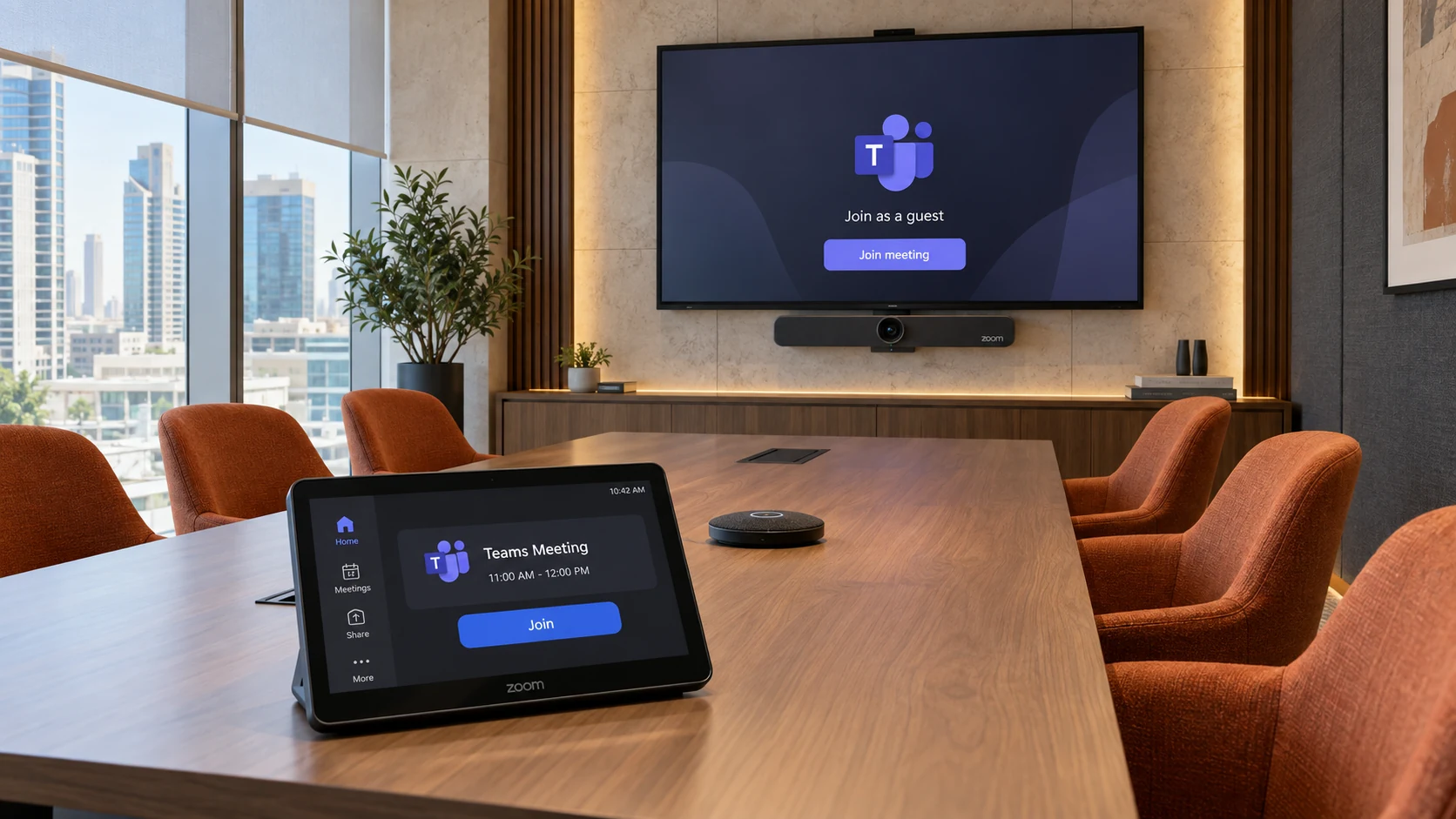
Zoom Rooms can recognize Teams meeting invitations and provide a Join button directly on the room controller.
This is the easiest experience for most users.
Cloud Video Interoperability (CVI)
Cloud Video Interoperability connects standards-based video conferencing systems with Microsoft Teams meetings.
Microsoft supports several CVI partners for enterprise deployments.
How Does a Zoom Room Join a Teams Meeting?
The process is straightforward once the room is configured correctly.
Step 1: Schedule a Microsoft Teams Meeting
The organizer creates a normal Teams meeting and invites the Zoom Room calendar resource.
The meeting invitation contains all required connection information.
Step 2: The Calendar Syncs
If calendar integration is configured correctly, the meeting appears automatically on the Zoom Room controller.
Supported calendar services include:
- Microsoft 365
- Exchange
- Google Workspace
This simple interface makes one touch teams meeting possible, allowing anyone to start a call without technical knowledge.
Step 3: Press Join
At the meeting time, users simply tap the Join button.
No laptop is required.
No USB cables are required.
No additional software needs to be opened.
This is one of the biggest reasons organizations choose a conference room system for Teams and Zoom instead of relying on BYOD connections.
Step 4: Join Through Direct Guest Join or CVI
- Direct Guest Join
- Cloud Video Interoperability
- WebRTC-based connection methods
Do You Need Special Hardware?
Usually, no.
One of the biggest advantages of zoom room join teams meeting capability is that many existing Zoom Rooms already have compatible hardware.
Typical equipment includes:
| Hardware | Required? |
|---|---|
| Zoom Room Appliance | Yes |
| Room Controller | Yes |
| Conference Camera | Yes |
| Microphones | Yes |
| Speakers | Yes |
| Calendar Integration | Recommended |
| Microsoft 365 Account | Usually Required |
If your organization already invested in Zoom Rooms, upgrading the software is often less expensive than replacing the entire room with new hardware.
According to Zoom’s interoperability documentation, supported Zoom Rooms can join Microsoft Teams meetings using Direct Guest Join when configured with compatible licensing and calendar integration.
Is the Experience the Same as Using a Microsoft Teams Room?
No. The experience is very good for standard meetings, but there are some differences.
A native Microsoft Teams Room provides every Teams feature because it runs Microsoft’s meeting software directly.
A Zoom Room joining Teams through interoperability focuses on core collaboration features.
In most meetings, users can:
- Join with audio and video
- View shared presentations
- Share content
- Use room microphones
- Use room speakers
- Participate in discussions
Some advanced Teams-specific features may not be available depending on the interoperability method used.
What Features Work When a Zoom Room Joins a Microsoft Teams Meeting?
The core meeting experience works well for most business meetings, but not every Microsoft Teams feature is available. The exact feature set depends on whether the room joins through Direct Guest Join, Cloud Video Interoperability (CVI), or another supported method.
For everyday collaboration, users can usually expect:
| Feature | Zoom Room Joining Teams | Microsoft Teams Room |
|---|---|---|
| Audio | ✓ Yes | ✓ Yes |
| Video | ✓ Yes | ✓ Yes |
| View Shared Content | ✓ Yes | ✓ Yes |
| Share Screen | ✓ Yes | ✓ Yes |
| Meeting Chat | Limited | ✓ Full Support |
| Whiteboard | Limited | ✓ Yes |
| Together Mode | No | ✓ Yes |
| Breakout Rooms | Limited | ✓ Yes |
| Live Reactions | Limited | ✓ Yes |
| Teams Apps | No | ✓ Yes |
For many organizations, these limitations are not a major concern because most meetings only require reliable audio, video, and content sharing.
When Is a Zoom Room the Right Choice?
A zoom room join teams meeting setup makes sense when your business already uses Zoom Rooms but occasionally joins Microsoft Teams meetings.
Typical examples include:
Internal Zoom, External Teams
A consulting company hosts internal meetings in Zoom but receives Microsoft Teams invitations from clients.
Instead of moving everyone to laptops, employees simply join from the meeting room.
Mixed Customer Environments
- Government agencies using Teams
- Construction companies using Zoom
- International suppliers using both platforms
Multi-Office Organizations
A company with offices in different countries may discover that one region prefers Teams while another uses Zoom.
Rather than standardizing on a single platform immediately, they deploy a conference room system for Teams and Zoom that supports both.
How Does Direct Guest Join Work?
Direct Guest Join is Microsoft’s supported method for allowing third-party meeting room systems to join Teams meetings.
Once configured, the Zoom Room controller detects a Microsoft Teams invitation from the room calendar.
Instead of asking users to type meeting IDs, the controller displays a simple Join button.
The room automatically connects using Microsoft’s approved interoperability method.
What Is Cloud Video Interoperability (CVI)?
Cloud Video Interoperability, commonly called CVI, allows standards-based video conferencing systems to connect with Microsoft Teams meetings through certified service providers.
Instead of treating a Zoom Room like an unsupported device, Microsoft works with approved interoperability partners to create a compatible connection.
Benefits include:
- Existing room systems remain in use.
- No need to replace cameras and microphones.
- Enterprise meeting security is maintained.
- Joining Teams meetings becomes much simpler.
This approach is common in large organizations that already own hundreds of conference rooms.
Does Calendar Integration Matter?
Yes. Calendar integration is one of the most important parts of a successful zoom room join teams meeting experience.
Without calendar integration, users may have to enter meeting details manually.
With calendar integration, meetings appear automatically on the room controller.
Supported calendar platforms include:
- Microsoft 365
- Microsoft Exchange
- Google Workspace
This creates a true one-touch meeting experience, reducing setup time and minimizing user errors.
Can Users Share Content During the Meeting?
Yes. In most supported configurations, participants can present content from the Zoom Room while connected to a Microsoft Teams meeting.
Common sharing methods include:
- HDMI presentation
- Wireless sharing
- Screen sharing from a connected device
The available options depend on the room hardware and software configuration.
What Are the Main Limitations?
A join teams meeting from zoom room setup works very well for standard meetings, but it is not identical to using a native Microsoft Teams Room.
Some limitations may include:
| Capability | Availability |
|---|---|
| Teams Whiteboard | Limited |
| Meeting Chat | Limited |
| Breakout Rooms | Partial Support |
| Teams Apps | Not Supported |
| Live Captions | Depends on Configuration |
| Front Row View | Not Available |
| Together Mode | Not Available |
Most businesses rarely use these advanced collaboration features in conference rooms, making interoperability a practical solution.
Should You Replace Your Zoom Room?
If your current Zoom Room hardware is modern and fully supported, enabling Zoom Room Teams interoperability is often much more cost-effective than replacing the entire meeting room.
Replacing equipment may only be necessary if:
- Hardware has reached end-of-life.
- Cameras no longer support modern video quality.
- Audio equipment is outdated.
- The business plans to move entirely to Microsoft Teams.
Otherwise, software configuration and licensing updates are often enough to support both meeting platforms.
Zoom Room vs Microsoft Teams Room
Choosing between the two depends on how your organization works.
| Requirement | Zoom Room | Microsoft Teams Room |
|---|---|---|
| Mostly Zoom meetings | ★ Excellent | Good |
| Mostly Teams meetings | Good | ★ Excellent |
| Mixed customer meetings | ★ Excellent | ★ Excellent |
| Existing Zoom investment | ★ Best Choice | May Require Migration |
| Native Teams features | Limited | ★ Full Support |
| Cross-platform meetings | ✓ Supported | ✓ Supported |
For companies working with different customers and partners every week, a conference room system for Teams and Zoom often provides the most flexibility without requiring duplicate meeting spaces.
What Licenses Are Required?
A zoom room join teams meeting setup depends on both software licensing and room configuration. In many cases, your existing Zoom Room license is enough for the room itself, but Microsoft 365 and calendar integration also play an important role.
The exact licensing requirements vary depending on whether you use Direct Guest Join, Cloud Video Interoperability (CVI), or a third-party interoperability service. Before deployment, always verify the latest requirements from both Microsoft and Zoom because licensing policies can change.
Can Older Zoom Rooms Join Teams Meetings?
Sometimes, yes.
If your Zoom Room hardware is relatively recent, a software update may be all that’s needed. Older appliances, cameras, or room controllers may not support the latest interoperability features.
Before upgrading, check:
- Current Zoom Room software version
- Hardware compatibility
- Supported operating system
- Room controller firmware
- Camera firmware
- Calendar integration
If your equipment is more than five to seven years old, compare the upgrade cost with replacing only the components that have reached end of support.
What Is the Best Conference Room System for Teams and Zoom?
The best conference room system for Teams and Zoom is one that matches how your employees actually work.
A small meeting room has different needs than a large boardroom. Instead of buying the most expensive equipment, choose hardware based on room size, participant count, and meeting style.
Small Meeting Rooms
- Wide-angle conference camera
- All-in-one speaker and microphone
- Touch controller
- Single display
- Zoom Room appliance
Medium Conference Rooms
- PTZ or intelligent tracking camera
- Ceiling or table microphones
- External speakers
- Dual displays
- Touch controller
- Wireless content sharing
Large Boardrooms
Typical capacity: 12+ participants
Recommended equipment:
- Multiple intelligent cameras
- Ceiling microphone arrays
- Digital Signal Processor (DSP)
- Professional loudspeakers
- Dual or triple displays
- Advanced room control system
Large rooms often require professional AV integration to ensure every participant can be heard clearly.
What Common Problems Do Businesses Face?
Most issues are caused by configuration rather than hardware.
Here are some common examples.
Calendar Doesn't Show the Meeting
If the room calendar isn’t synced correctly, the Teams invitation won’t appear on the Zoom Room controller.
The fix is usually checking Microsoft 365 permissions, resource mailbox settings, or calendar integration.
No Join Button
- Direct Guest Join isn’t enabled.
- The meeting wasn’t invited to the room mailbox.
- Software versions are outdated.
- The room isn’t licensed correctly.
Poor Audio Quality
- Incorrect microphone placement
- Room echo
- HVAC noise
- Inadequate speaker coverage
Video Quality Problems
Blurry or inconsistent video may result from:
- Limited network bandwidth
- Outdated cameras
- Poor lighting
- Older firmware
- Incorrect camera positioning
Even a high-end camera performs poorly in a room with insufficient lighting.
How Can IT Teams Make Interoperability Easier?
Standardizing meeting rooms reduces support requests and improves the user experience.
Good practices include:
- Use the same room controller in every meeting room.
- Keep software updated across all locations.
- Standardize camera and microphone models.
- Enable automatic updates where possible.
- Test interoperability after major software updates.
- Train employees to use one-touch meeting join.
A consistent room experience means employees spend less time troubleshooting and more time collaborating.
Is Zoom Room Teams Interoperability Secure?
Yes, when configured according to Microsoft and Zoom recommendations.
Both companies provide enterprise-grade security features for meeting rooms, including encrypted communication, authenticated meeting access, and administrative controls.
Organizations should also follow general IT security practices such as:
- Enabling multi-factor authentication (MFA)
- Applying regular software updates
- Managing room accounts centrally
- Reviewing meeting policies
- Restricting administrative access
Should You Upgrade or Replace Your Meeting Room?
- Your hardware is still supported.
- Most meetings are already hosted on Zoom.
- You occasionally need to join Microsoft Teams meetings.
- The room delivers good audio and video performance.
- You want to extend the value of your existing investment.
- Your hardware has reached end of support.
- You plan to standardize on Microsoft Teams across the organization.
- The current room struggles with audio or video quality.
- Major hardware components already need replacement.
Final Thoughts
Yes, a zoom room join teams meeting workflow is not only possible, it is now a practical option for many organizations. With Direct Guest Join or Cloud Video Interoperability, businesses can use their existing Zoom Rooms to participate in Microsoft Teams meetings without replacing their conference room hardware.
The best solution depends on how your company works. If Zoom remains your primary collaboration platform but customers frequently invite you to Teams meetings, enabling join teams meeting from zoom room capability is often the most cost-effective approach. It reduces meeting setup time, avoids unnecessary hardware upgrades, and gives employees a consistent meeting experience.
If your business hosts an equal mix of Zoom and Microsoft Teams meetings, investing in a conference room system for Teams and Zoom provides long-term flexibility. Instead of maintaining separate rooms for each platform, you can support both while making better use of your existing cameras, microphones, displays, and room controllers.
Before making changes, review your current hardware, software versions, and licensing. A compatibility assessment can help determine whether a simple software update is enough or whether some components should be upgraded.
If you’re planning a new meeting room or modernizing an existing one, start by identifying how your teams actually collaborate. The right solution isn’t the one with the most features, it’s the one that makes meetings easier for everyone who walks into the room.
Frequently Asked Questions
Can a Zoom Room join a Microsoft Teams meeting without a laptop?
Yes. A properly configured zoom room join teams meeting setup allows users to join Microsoft Teams meetings directly from the Zoom Room controller. With calendar integration and Direct Guest Join enabled, users simply tap the Join button without connecting a laptop.
What is the easiest way to join Teams meeting from Zoom Room?
The easiest method is Direct Guest Join. When a Microsoft Teams meeting invitation is sent to the Zoom Room’s resource calendar, the meeting appears automatically on the controller. Users only need to tap Join, making it the simplest way to join teams meeting from zoom room.
Do I need new hardware to use Zoom Room Teams interoperability?
Not necessarily. Most modern Zoom Room appliances, cameras, microphones, and controllers support Zoom Room Teams interoperability after the correct software updates and configuration. Older equipment may require firmware updates or replacement if it is no longer supported.
Can I share my screen during a Teams meeting from a Zoom Room?
Yes. In most supported deployments, participants can present content through HDMI or wireless sharing while connected to a Microsoft Teams meeting. The exact options depend on the room hardware and the interoperability method being used.
Is a conference room system for Teams and Zoom worth it?
Yes, especially for organizations that regularly collaborate with customers, suppliers, or partners using different meeting platforms. A conference room system for Teams and Zoom allows one meeting room to support both ecosystems, helping businesses get more value from their existing AV investment.