
TL;DR
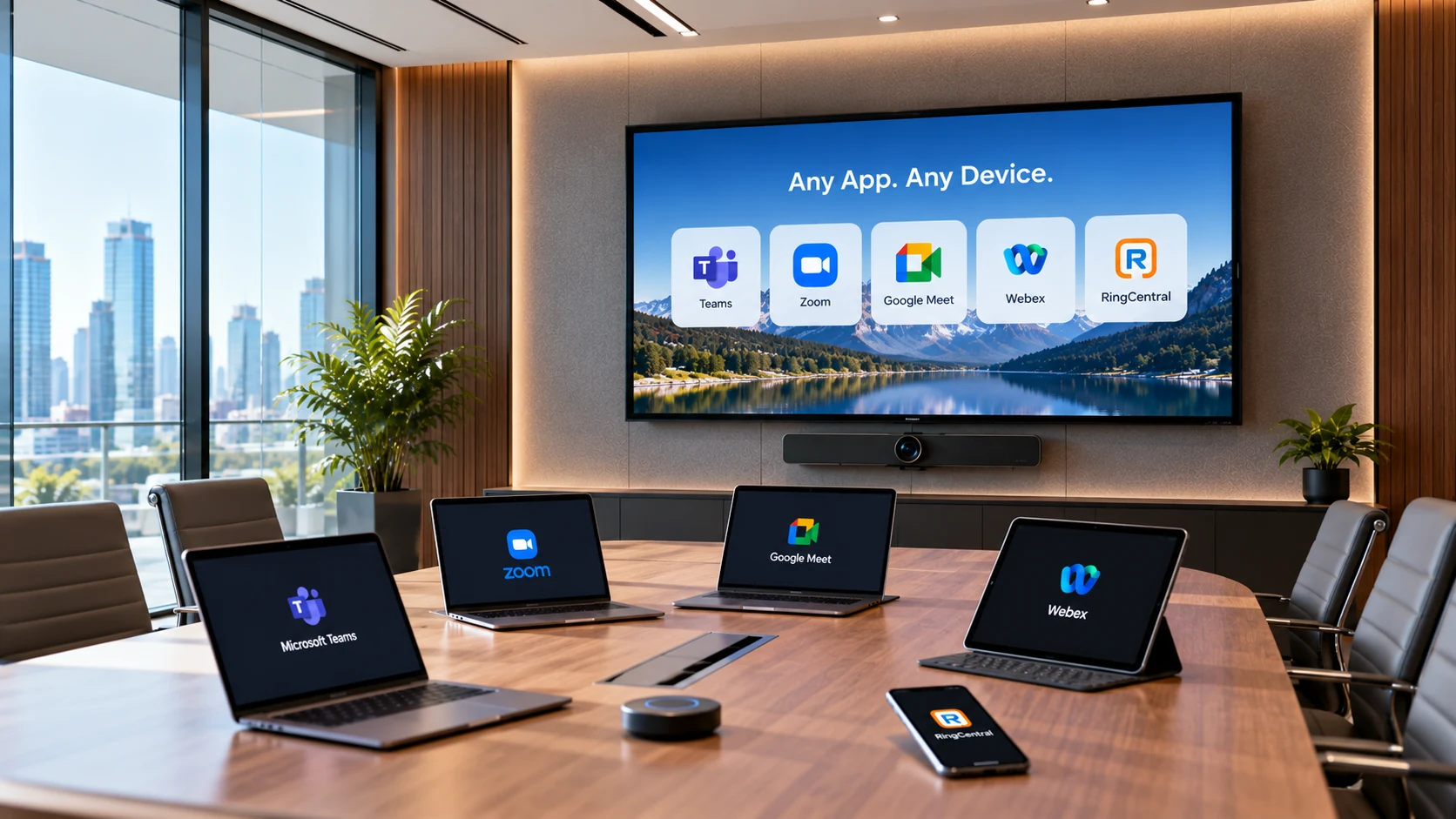
- A multi-platform room lets anyone walk in, plug in or cast, and run their own video app instead of being locked to one vendor.
- BYOD (bring your own device) and BYOM (bring your own meeting) are two different problems: one is about hardware, the other is about which conferencing app runs the call.
- Ivanti’s 2025 research found 44% of workers already use a personal phone for work tasks, so rooms built around a single fixed laptop are fighting a losing battle.
- USB-C, wireless casting, and app-agnostic room kits solve most of the friction without a full AV overhaul.
- The room hardware (camera, mic, speaker) should work the same no matter which laptop or app is driving the call.
Most meeting rooms were built for one company, one laptop, and one video app. That setup breaks the moment a client joins on Webex, a vendor only uses Google Meet, or a new hire shows up with their own MacBook because IT hasn’t issued a work laptop yet. A multi-platform room fixes that by separating the room’s camera, mic, and screen from whatever app or device is running the actual call.
This post covers what a multi-platform room actually is, how BYOD and BYOM fit into it, what hardware makes it work, and the tradeoffs compared to a single-vendor room. We’ve pulled in real numbers on device use in the workplace so you’re not guessing at how common this problem already is.
What Is a Multi-Platform Room?
A multi-platform room is a conference space where the camera, microphone, speaker, and display work with any video app and any connected device, not just one brand’s system. Nobody has to install special software or use a company-issued laptop to run a decent call.
Picture a room with a ceiling mic, a smart camera, and a display. Someone walks in with their own laptop, plugs in a single USB-C cable or connects wirelessly, opens their own Zoom or Teams account, and the room’s mic and camera just work. No adapter box tied to one vendor. No support ticket because the visiting laptop doesn’t have the “right” software.
Why This Matters Now
It matters because most companies already run more than one video platform, whether they planned to or not. Sales might live in Zoom, internal teams run Microsoft Teams, and clients dial in on Google Meet or Webex depending on their own company. A room locked to one app forces someone to open a laptop and share screen through a workaround every single time a different platform shows up.
The alternative, a room appliance hardwired to one platform, works fine until the meeting isn’t on that platform. Then someone is hunting for a HDMI cable, propping a laptop on a chair, or dialing in from their phone speaker because the room mic won’t cooperate.
BYOD vs BYOM: What's the Actual Difference?
BYOD means bringing your own physical device, like a laptop or phone, into the room and connecting it to the room’s shared hardware. BYOM means bringing your own meeting, meaning the room’s system runs whatever conferencing app you personally use, rather than a house-brand video platform baked into the appliance.
They overlap but solve separate problems.
- BYOD (bring your own device) is about hardware ownership. An employee, contractor, or visiting client connects their personal or company laptop, tablet, or phone to the room’s camera and mic system instead of using a fixed room PC.
- BYOM (bring your own meeting) is about software choice. Even if the room has a dedicated PC bolted to it, BYOM setups let that PC run Zoom one hour and Teams the next, instead of being locked into a single vendor’s meeting software.
A truly flexible room supports both at once: any device can plug in, and any app can run the call through the room’s audio and video gear.
A Quick Example
A marketing team books a room for a client pitch. The client is dialing in through Webex. The marketing lead has a personal MacBook with Zoom license from a previous job, and the room’s house system is set up for Teams by default.
In a single-platform room, this is a scramble. In a multi-platform, BYOD-friendly room, the marketing lead plugs in with USB-C, opens Webex in a browser or app, and the ceiling mic and camera hand off to whatever app has focus. No IT call needed.
Why BYOD Meeting Rooms Are Becoming the Default
Bring your own device is quietly outpacing company policy on the matter. Research from Ivanti found that nearly half of workers, 44%, had already used their personal phone for work, and separate figures from the same study show 32% had used their own computer for work tasks.
The bigger issue for IT teams is enforcement. The same research found that even where a company officially bans personal devices, 78% of employees use them anyway. That means a room built to reject outside laptops isn’t stopping BYOD, it’s just making it clunkier and less secure, since people route around the room hardware entirely and use their phone hotspot or a personal screen-share link.
This isn’t only a security story either. CompTIA’s enterprise mobility research found that only 4% of UK firms had a full BYOD policy, while 44% ran a partial BYOD approach, meaning most companies are somewhere in the middle rather than fully committed either way. Rooms need to work for that messy middle ground, not for a tidy policy that doesn’t match how people actually work.
What This Means for Room Design
If most staff will connect a personal or unmanaged device at some point, the room hardware needs to be device-agnostic by default, not as an afterthought. That’s a shift from the old model of “the room has a PC, guests use the PC.”
Practical takeaways for a room design brief:
- Build around USB-C and wireless casting as first-class connection methods, not backup options.
- Assume the primary device changes every meeting.
- Keep the room’s mic and camera drivers standard (USB Video Class, USB Audio Class) so they work without installing anything.
Core Hardware for a Multi-Platform Room
The hardware that makes any-app, any-device rooms possible boils down to three things: a UC-certified camera, a room mic that isn’t tied to one app, and a flexible connection method. None of this requires custom software per platform, because the room hardware just shows up as a standard camera and microphone to whatever app is running.
Camera
A room camera should register as a plug-and-play USB video device to the operating system. That means Zoom, Teams, Meet, and Webex all detect it the same way, without a proprietary driver from the camera maker. Look for cameras with wide field of view (typically 120 degrees or more) so a full table fits in frame without cropping people out.
Microphone and Speaker
Ceiling or table mic arrays that use standard USB audio protocols will show up in any app’s audio settings without extra setup. Coverage matters more than brand loyalty here. A mic rated for a 20-foot pickup radius handles a mid-size room without someone having to lean toward a single puck mic in the center of the table.
Connectivity
This is where BYOD lives or dies. Two approaches cover almost every case:
- Wired USB-C, one cable for video, audio, and often power delivery to the laptop. Fast, reliable, no app on the laptop needed.
- Wireless casting, using a dongle or app-based screen share so a laptop connects without a cable at all, useful for rooms where people don’t want to hunt for the right cable length.
A well-designed room offers both, since some people always prefer a physical cable for reliability and others want to walk in and cast in five seconds.
Comparison: Fixed Room System vs Multi-Platform BYOD Room
Feature | Fixed Single-Platform Room | Multi-Platform BYOD/BYOM Room |
Video app support | One platform baked in | Any app the visiting device runs |
Device flexibility | Requires room PC or matching hardware | Any laptop, tablet, or phone connects |
Setup time per meeting | Low, if using the “right” app | Low, once cabling or casting is learned |
IT overhead | Ongoing, one app per room to maintain | Lower long term, hardware is app-agnostic |
Client and vendor calls | Often needs a workaround | Handled natively |
Upfront cost | Can be lower for single-vendor bundles | Slightly higher for flexible room kits |
Risk of shadow IT (unmanaged devices) | Higher, people route around the room | Lower, room supports what people already use |
Neither approach is universally “better.” A single-platform room makes sense for a company that is genuinely all-in on one video vendor with no client-facing calls on other platforms. Most companies aren’t in that position, which is why multi-platform rooms have become the more common ask in new office builds.
The Real Cost of Getting This Wrong
Video conferencing spend isn’t small anymore. Gartner projected end-user spending on conferencing to grow 24.3% to reach 4.1 billion dollars in a single year, and that was before hybrid work became permanent at most companies. A meeting room that can only run one app is spending real budget on hardware that gets bypassed the moment a client or vendor shows up on a different platform.
The practical failure mode looks like this: a room has a nice camera and mic, but they’re locked to a single-vendor bar system. A client calls in on Webex. Someone opens a laptop, tries to screen share into the room display, gives up, and the whole meeting runs through a laptop’s built-in speaker while six people lean toward it. The room hardware, which cost real money, sits unused for that call.
Putting It Together: What a Good Multi-Platform Room Actually Looks Like
A working multi-platform room has three things lined up at once: hardware that any app recognizes without drivers, a connection method that doesn’t require IT to be present, and a network setup that keeps guest devices separate from company systems. None of these three pieces are exotic. They’re mostly a matter of choosing standard-protocol hardware over proprietary bundles when the room gets built or refreshed.
The teams that get this right usually start with the connection method, since that’s what people notice first. If plugging in one cable or casting from a phone takes less than 30 seconds and just works, the rest of the room’s flexibility follows naturally. If it takes longer than that, people go back to their own phone on speaker, and the investment in good camera and mic hardware goes to waste.
Rolling Out a Multi-Platform Room Without a Full Rebuild
Most teams don’t need to gut a room to get here, they need to layer flexibility onto what’s already installed. A practical rollout usually follows four steps.
Step 1: Audit What's Already in the Room
Step 2: Add a Connection Layer
Step 3: Separate Guest Traffic from the Company Network
Step 4: Test With a Platform You Don't Normally Use
Final Thoughts
A multi-platform room isn’t a luxury add-on, it’s what most rooms already need given how people actually connect and which apps they actually use. BYOD is no longer an edge case to plan around later, it’s the default behavior for close to half the workforce already, and BYOM support means the room doesn’t care whether the call is on Zoom, Teams, Meet, or something else entirely.
If you’re planning a room refresh or a new build, start by listing every video platform your team and your clients actually use in a given month. Then check whether your current camera, mic, and connection setup handles all of them without a workaround. If it doesn’t, adding USB-C and wireless casting to standard-protocol hardware is usually a smaller project than people expect, and it’s the fastest way to stop losing meeting time to cable hunts and app mismatches.
Frequently Asked Questions
Does BYOD Mean Lower Video and Audio Quality?
No, the quality comes from the room’s camera and mic, not the connected device. Since the laptop, tablet, or phone is just a pass-through for the meeting app, video and audio quality depend on the room hardware’s specs, not on whose device is plugged in. A budget laptop connected to a good ceiling mic still sounds better than a premium laptop’s built-in mic picking up a whole room.
Is a BYOD Room Less Secure?
It can be, if there’s no plan for it, but ignoring BYOD is riskier than designing around it. Microsoft’s own data, cited in Ivanti’s research, found that more than 90% of ransomware incidents begin with an unmanaged device. The fix isn’t banning outside devices from the room, since people will connect them anyway through workarounds. The fix is keeping the room’s camera and mic on a separate network segment from company data, so a guest laptop connecting to run a call never touches internal systems.
What About Rooms That Already Have a Dedicated System?
Most fixed room systems can be made more flexible without full replacement. Adding a USB-C hub or a wireless casting device alongside an existing room PC often covers the BYOD case without ripping out working hardware. The camera and mic usually already support standard USB protocols, so the limitation is often just the missing cable or casting option, not the core hardware.
Do Employees Actually Want to Use Their Own Devices in Meeting Rooms?
Yes, based on how often it already happens outside official policy. With 78% of employees using personal devices even when company policy forbids it, the demand clearly exists independent of what IT prefers. Rooms that fight this trend tend to see people default to their phone on speaker instead of using the room’s mic system at all, which is a worse outcome for call quality.
How Much Does It Cost to Convert a Room to Multi-Platform?
It depends on what’s already installed, but adding USB-C and wireless casting to an existing camera and mic setup is usually a smaller investment than a full room replacement. The bigger costs come from replacing an outdated camera or mic that only works with one vendor’s proprietary software, which does happen with some older all-in-one bar systems.